Remote To WiFi Converter
Bhadre Remote to WiFi Converter - An Introduction
Using multiple remotes for multiple equipments in a house or premise is very inconvenient. If all these can be convereted to WiFi using Bhadre Automation's controller, these equipments can be operated using a signle app (Bhadre) using one's Smart phone. The controller that does this is Bhadre's Remote to WiFi Controller. This document explains how thios can be done.
1nn Bhadre's Remote to WiFi Converter
Bhadre's Remote to WiFi converter is a microcontroller with Wifi. The following shows its picture. It takes 5VDC power supply. It has an external JST socket (2.0mm) to which the push buttons of any remote can be connected. In addition, it has internal terminals to which remotres can be cabled.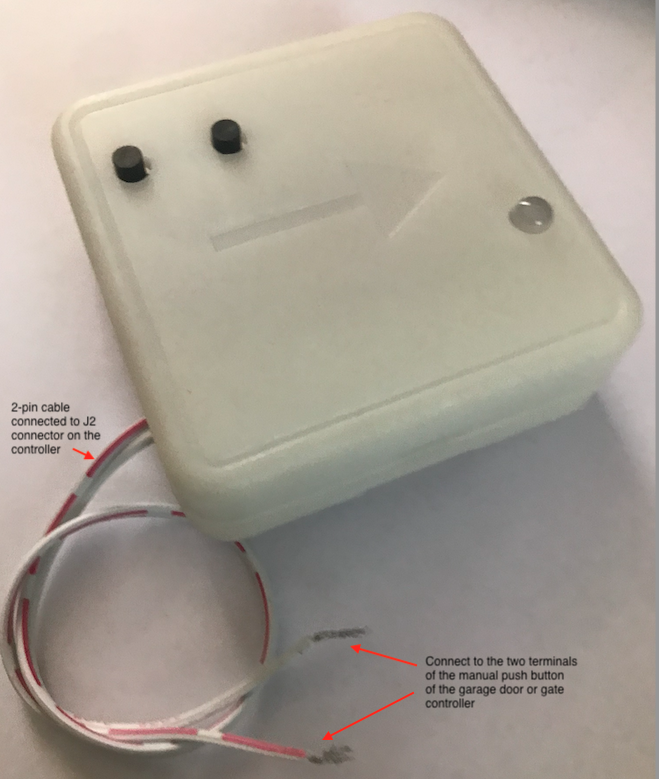
2 Connecting the included Universal Remote
When you purchased thre garage door controller from Bhadre, a universal remote is included in the package. It is a pre-wired 3-button remote that can work with most of the garages and gates. So, if you want to convert the garage door remote to WiFi, this remote can be used and can be paired to your garage or gate or any equipment that this remote is compatible with. The following is a picture of that remote.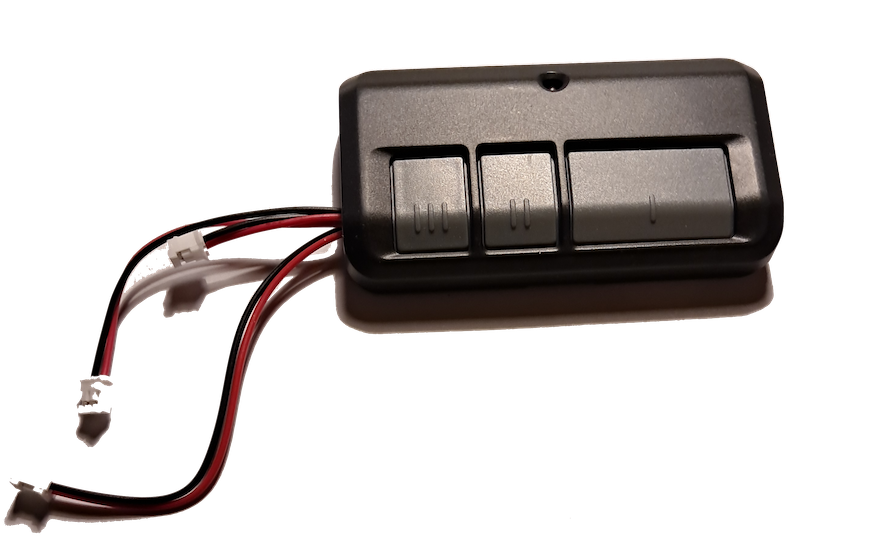
This is a pre-wired remote. The following pictures show how three JST (2.0) cables are soldered to the three push button terminals within the remote.
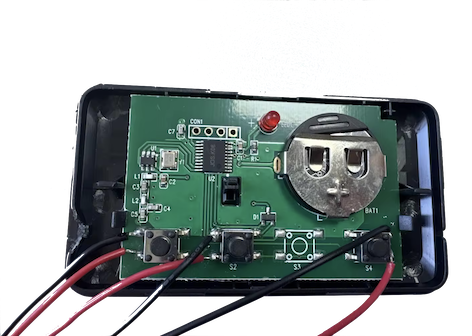
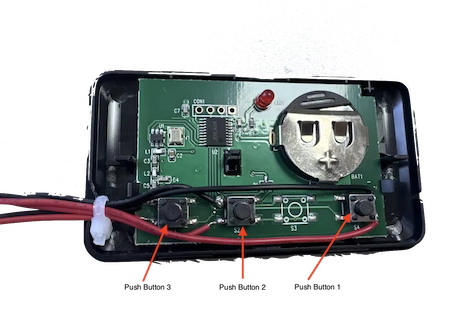
There are three cables coming out of it, each of them at different length. Each cable is wired to one of the the three push buttons within the remote.
Each one of these universal remote can operate three different garage door or gate. Coonect the three cables to three different WiFi controllers from Bhadre. If you have only one garage door, you need to connect one of these cables to one WiFi controller from Vhadre.
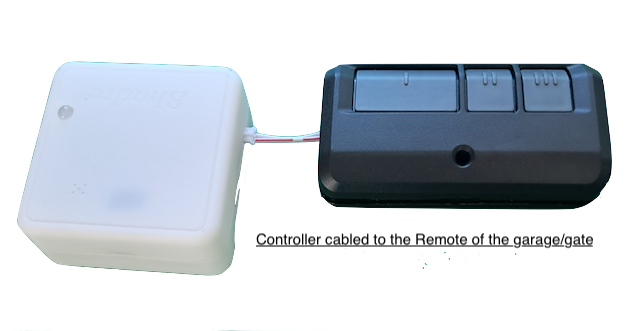
Once cabled, pair the remote to your gate or garage or any other equioment and configure the WiFi controller from Bhadre. You can pair this with your garage as per the steps below. Configuring the WiFi controller is explained in the sections below.
3 How to pair Universal Remote to your equipmment, garages and Gates
Note: The included remote may work with your garage doors and gates, but may not work with many other equipments
It is recommended to try pairing this universal remote with your garage door first before attempting to cable it to WiFi controller from Bhadre.
First make sure that the remote has the battery, and it is charged. LED of the remote will be Red if it has battery. LED will turn dim and may show rapid flashes when battery is low and needs replacement. Use 3V CR2032 coin cell battery when replacing
Refer to the following document for instructions for pairing:
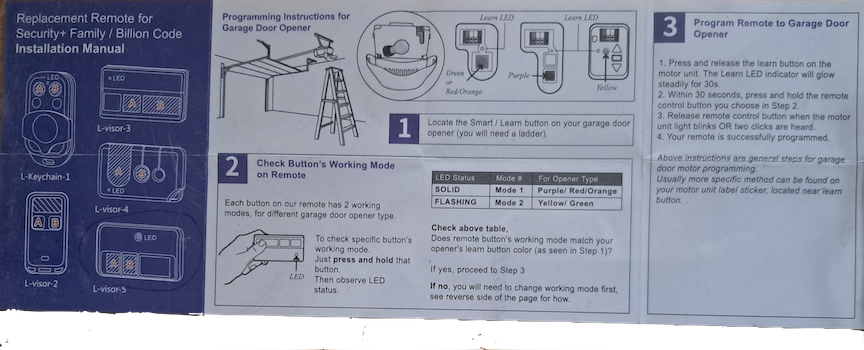
If this universal remote does not work for you, you can cable your own remote to Bhadre's WiFi converter as described in the sections below
4 Cabling your own Remote to WiFi Converter
If you do not want to use the included universal remote, or if that does not work with your gate or garage, you can cable your own remote the way shown in the pictures above
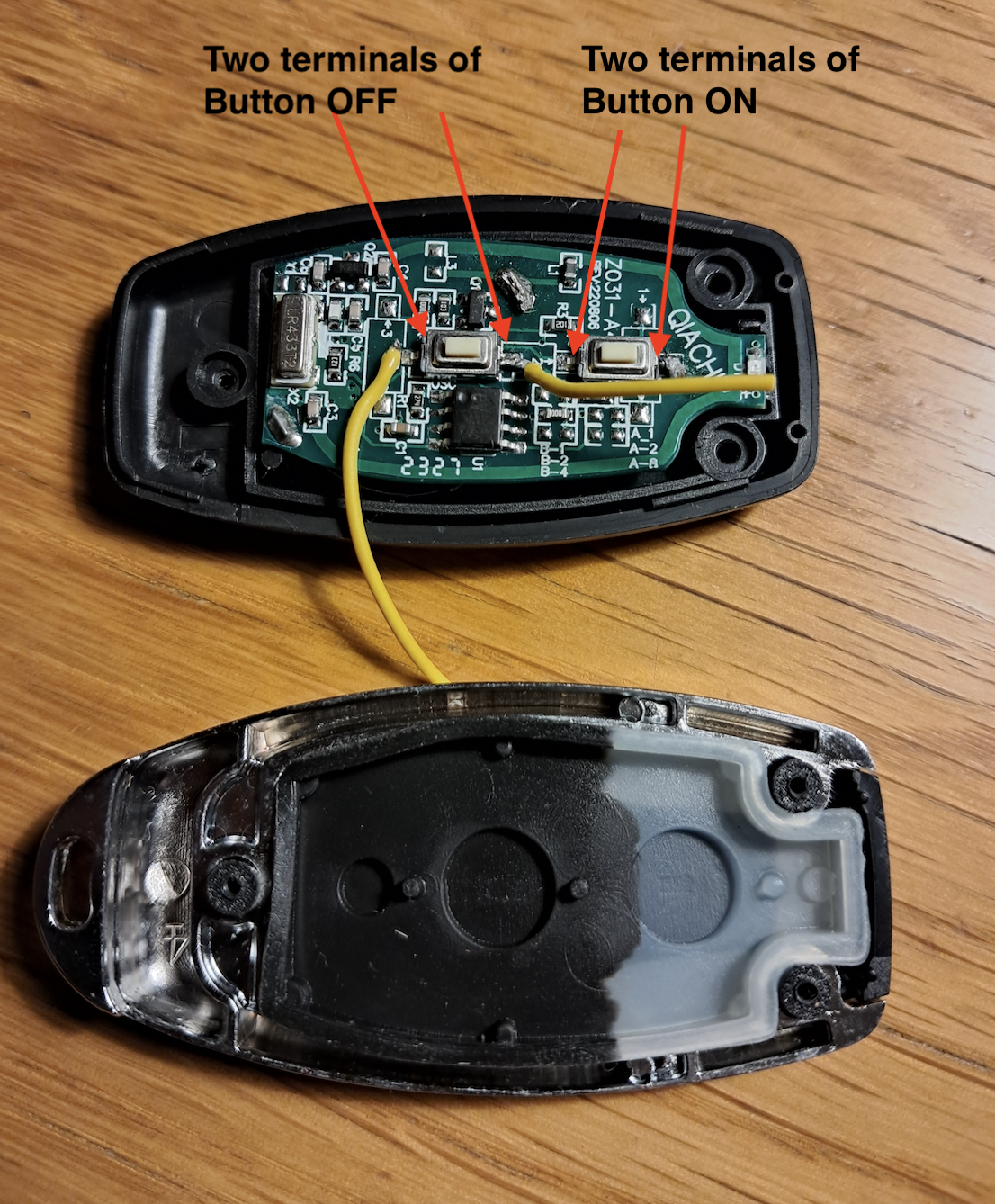
If you want to use your own remote, you can do so. First open your remote and locate the push button terminals on it. The picture shown below is that of our Universal remote, the process of cabling is the same with your remote.
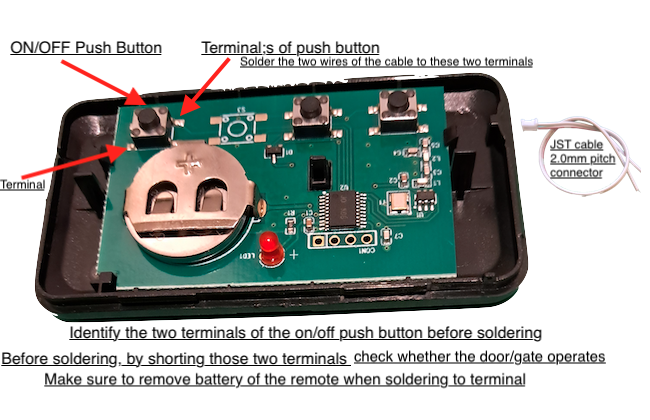
Note: This needs soldering work. Make sure to remove the battery of the remote when soldereing. You may have to drill a hole on the plastic box of the remote to take the cable out to connect to the controller.
Once two wires are soldered to the terminals of the push button of your remote, connect the other end of the cable to the jsT socket, or to NO and COM terminals within the Wifi controller. Then configure the WiFi controller as described in the sections below.
5 Cabling a 2-button ON/OFF or Open/Close Remote to WiFi Converter
If you have a two-button remote with one button for OFF/Close and another button for ON/Open, then this has to be cabled differently than what is shown in the above section. Here is a picture of such a remote.
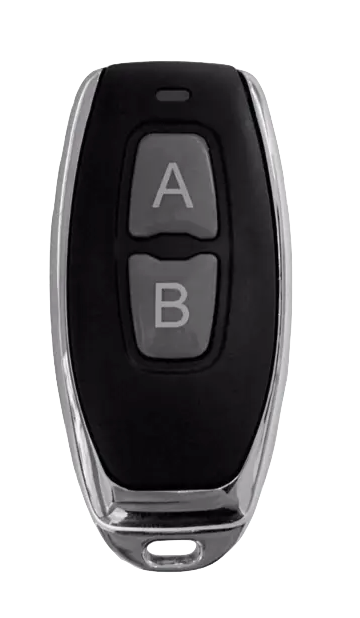
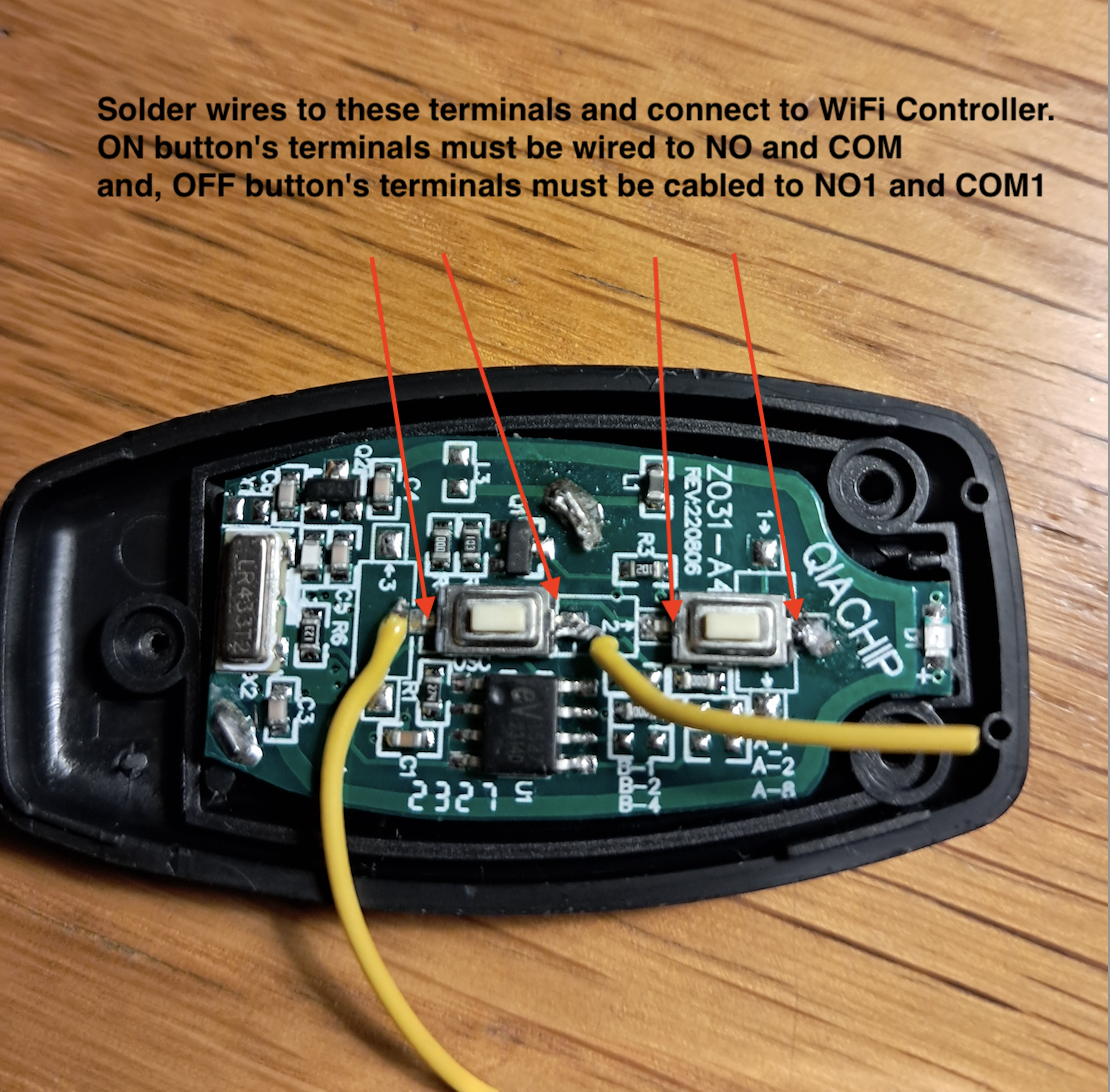
Wire these two push buttons such that the two terminals of the "Open push button" are cabled to NO and COM of the WiFi converter and the two terminals of the OFF/Close push button are cabled to NO1 and COM1 of the WiFi converter. These terminals BO, COM, NO1 and COM1 can be found on the green terminal block of the PCB within the WiFI controller. So, you need to open the box using a flat screw driver.
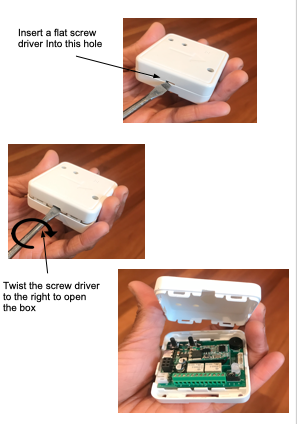
Note the green terminal block on the PCB. The terminals are marked on its PCB.
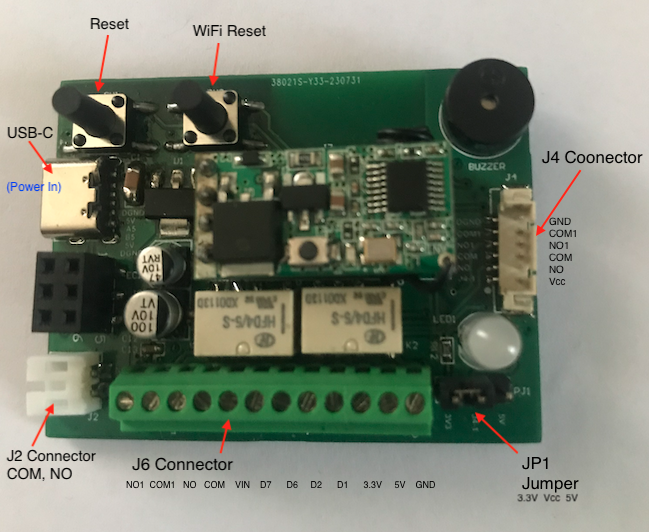
Once these terminal pins are identified, cable two terminals of the ON/Open push button of the remote to NO and COM terminals on this terminal block of WiFi controller. And, cable the two terminals of OFF/Close push button of the remote to NO1 and COM1 terminals on the WiFi converter. You may have to drill a hole on the plastic box of the remote to take these cablers out of it and connect to the terminals on WiFi converter. There are openings on the side as well as bottom of the box of the WiFi converter to pass the cable through.
6 Initial Setup and Common Configurations
In order to use this controller, it needs some initial minimum configuration. These initial configurations are common to most of the devices of Bhadre. Click here to see the instructions on doing the initial configurations of this controller. Most of the features including Face Regognition are available on this WiFi to Remote converter. Follow the instruction in this section to configure it.7 Set Separate ON/OFF Button" setting for a 2-button ON/OFF remote
If you have cabled a 2-button remote with separate ON (or OPEN), and OFF (or Close) buttons of a door or gate, it is important to set "Separate ON/OFF Button" field of the "Remote to WiFI converter" to "Yes". To set this, click on "Ports and Security" button in the Devices Admin page under Dashboard. If you have more than one device, it may ask you to select the device. Once selected, you will see the "Ports and Security" form. On that page, select 'Yes' for Separate ON/OFF Button and press Submit.
8 Configuring Scheduled Actions or Additional Automatic Controls
This controller and mostly all the controllers from Bhadre have powerful features to configure automatic controls either scheduled or periodic, based on sensors or other events on any other remote devices. Congurations can be done tyo activate any of your other devicers sitting remote when this device is activated
Refer to Configuring Automatic Controls to configure automatic controls as well as scheduled actions. Some of the automatic conytrols th at you can configure are turnong on/off switch automatically regularly at some time of a day or a week, or when a sensor detects an event at a remote location.